Create a desktop dock
Add a folder from the Manager, choose its expand style, and drop it onto your desktop icon grid.
Now available · v1.1.1
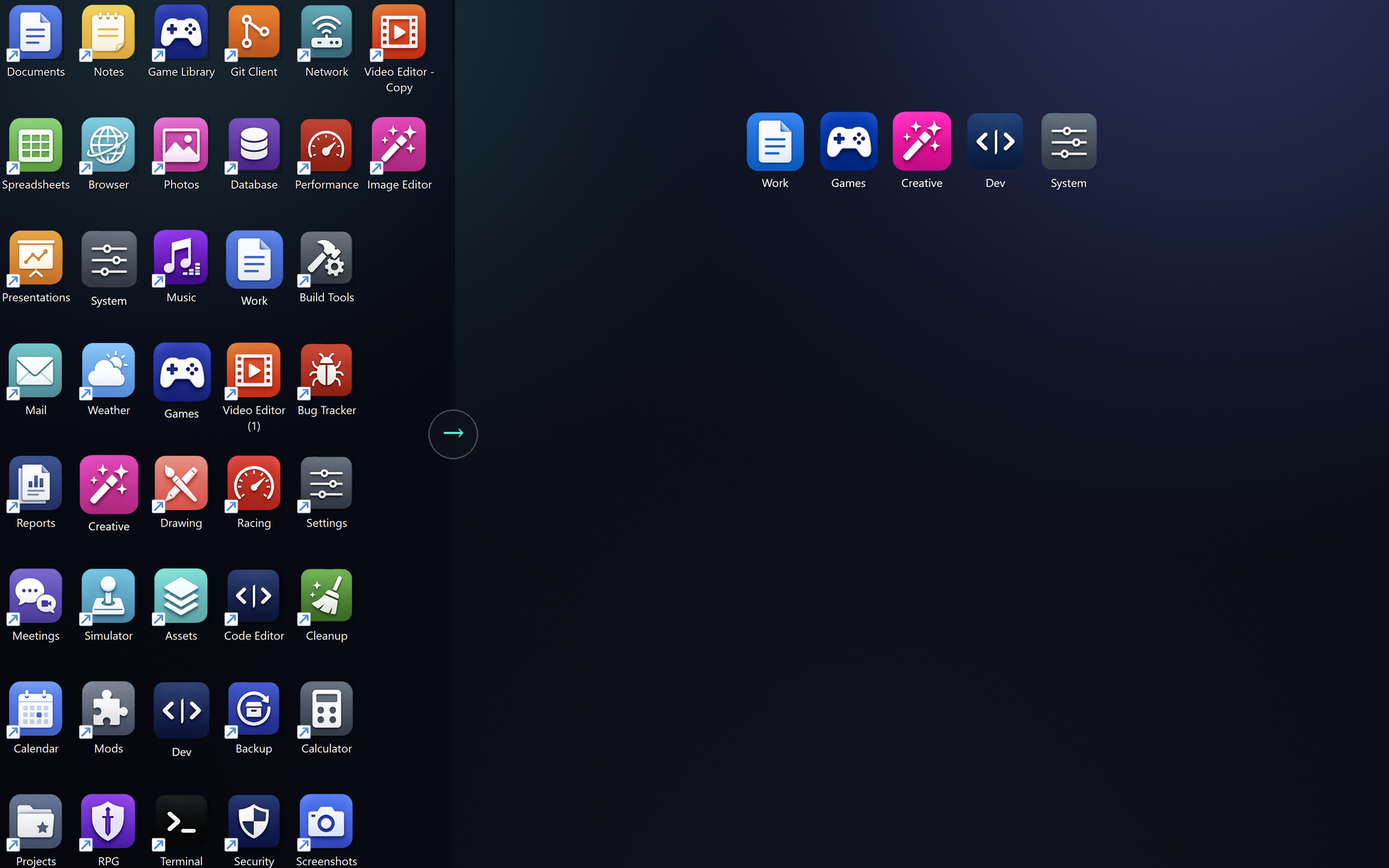
DeskRipple is a Windows 10 and 11 desktop shortcut organizer. Its folders sit alongside your regular desktop icons — hover or click one to open its shortcuts, and it closes back to a single icon. The desktop stays clear without burying anything in a Start-menu folder.
One-time purchase, not a subscription · Windows 10 and 11 (64-bit)

Why it exists
“My desktop was always either an icon wall, or a pile of shortcuts buried in Start-menu folders.”
DeskRipple is built by a solo developer to make desktop groups that live where your shortcuts already are — on the desktop. Each one takes up a single icon until you reach for it, then collapses out of the way.
It's for Windows users who want organization that feels native, stays light, and never turns into another subscription.
No install required
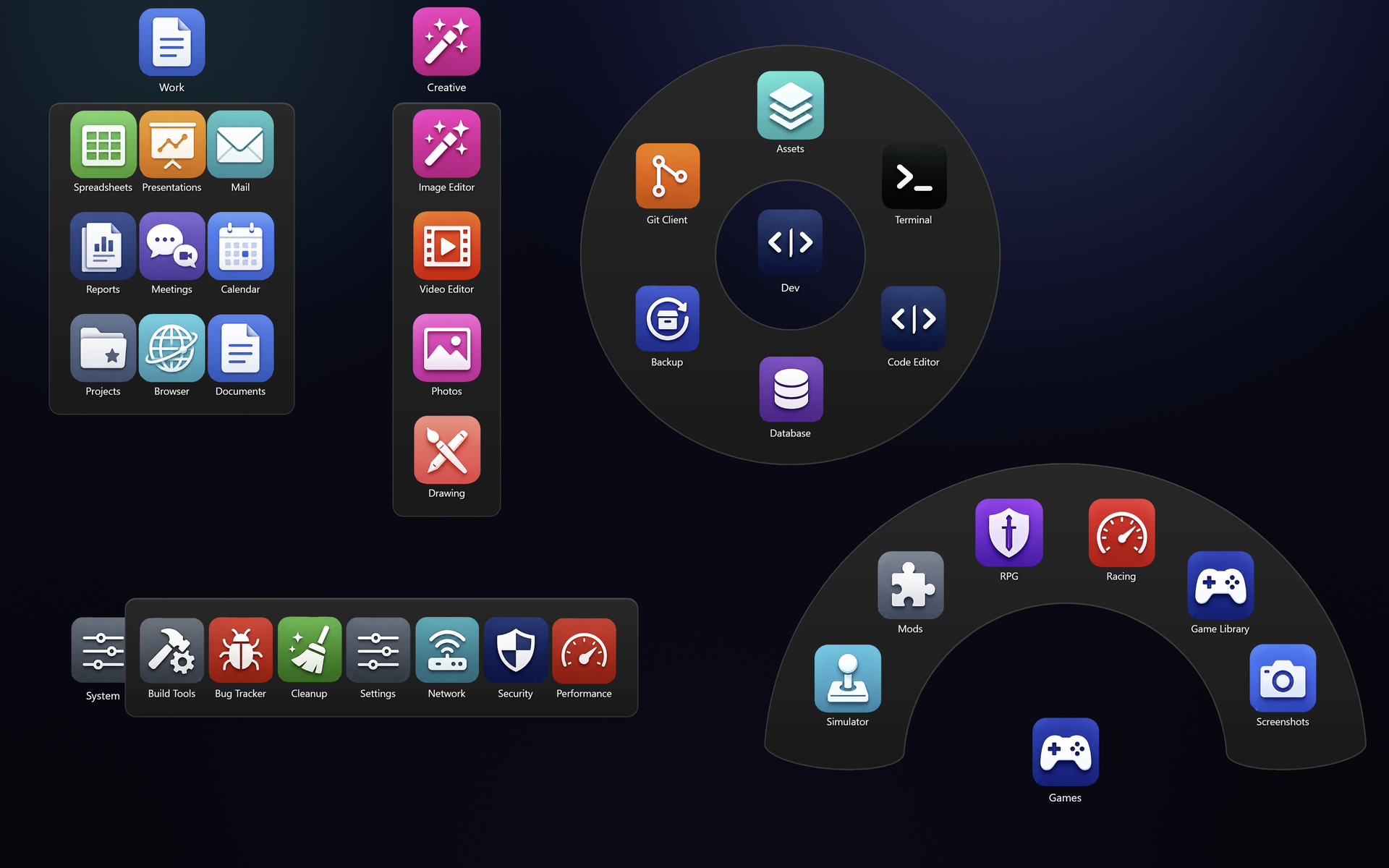
The demo lets you feel the core interaction first — hover a folder and watch it open in Grid, Column, or Fan (the app adds Row and Ring). It's the fastest way to tell whether DeskRipple fits how you work.
How it works
It isn't a live folder mirror and it isn't an auto-sorter. It's a fast way to group the shortcuts, files, apps, and links you already reach for.
Add a folder from the Manager, choose its expand style, and drop it onto your desktop icon grid.
Drag in desktop shortcuts, web links, documents, and other files. DeskRipple keeps its own copy of each shortcut, so entries don't break when the originals move.
The folder fans out the moment you reach for it, then collapses back to a single desktop icon when you're done.
Built for Windows 10 & 11 desktops
The hard parts are the ones you only notice when they go wrong: icon sizing, grid placement, mixed display scaling, and never losing a shortcut.
Docks sit alongside your regular desktop icons — behind your windows, not floating over them — snap to the live icon grid, and match the rendered icon size on each monitor.
Grid, Column, Row, Fan, and a 360° Ring — with themed translucent panels and smooth open/close animations. Pick the layout per folder.
Drop .lnk shortcuts, web links, documents, and other files straight in. DeskRipple keeps its own copy of each shortcut so an entry survives the original being moved or renamed.
Drag a desktop shortcut into a dock and the original tucks away safely. Remove it (or uninstall) and it comes right back — or switch to Copy mode to leave originals in place.
Drop a dock onto a cell that's already taken and the native desktop icon politely shifts to the nearest free spot — nothing gets buried.
Switch between desktop setups — Work, Home, or a clean one for screen sharing — without rebuilding your folders from scratch.
Per-Monitor V2 aware — designed to keep docks crisp and correctly placed across displays running at different scales.
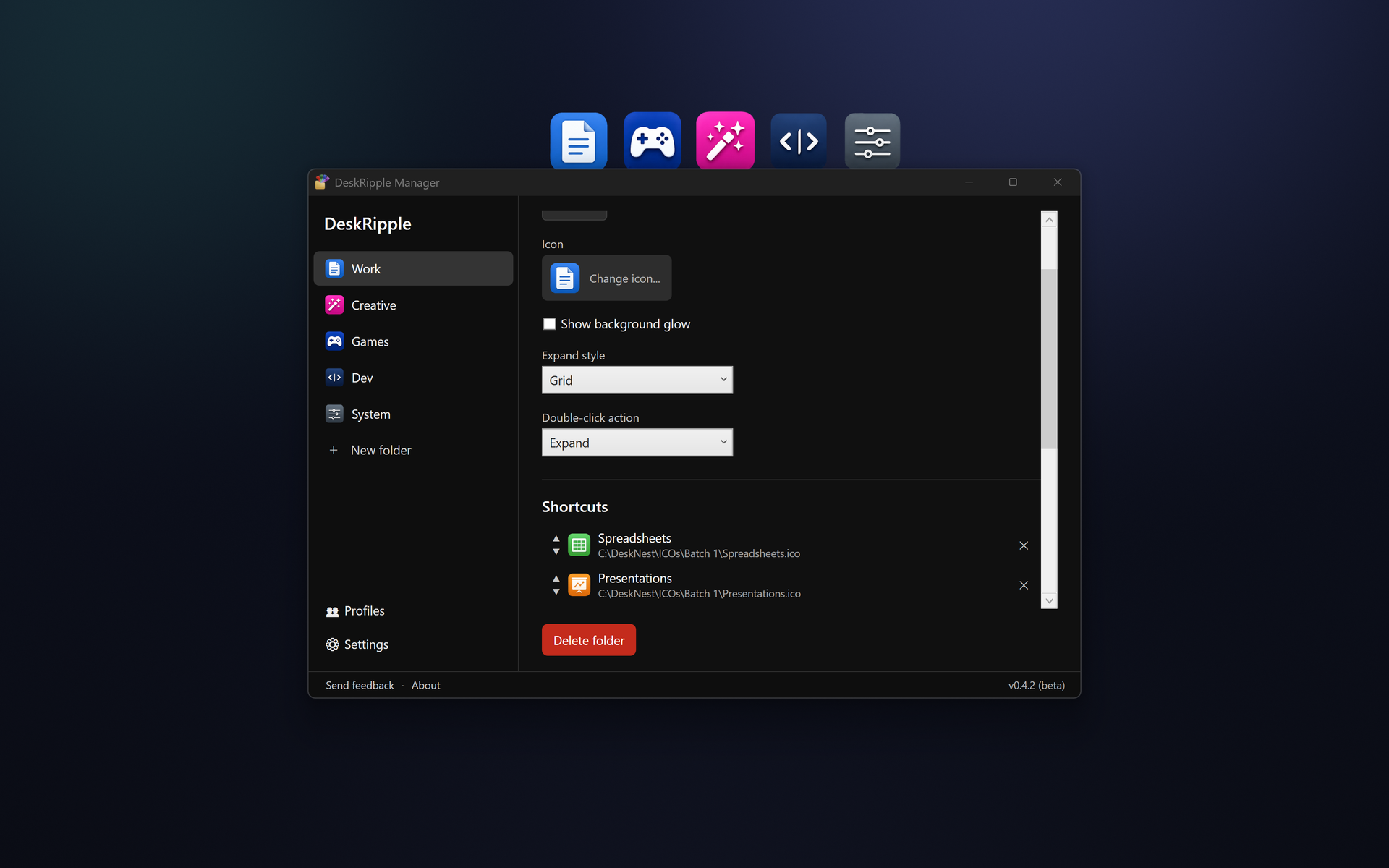
Create folders, set each one's expand behavior, and give it its own icon — all from a single Manager window.
No account, no trackers — data stays in %APPDATA%. One installer with no separate .NET and no admin rights, plus silent auto-updates you can switch off.
See it in action
The desktop behavior, the expand styles, and the Manager where it all gets configured.
Trust & privacy
DeskRipple is clear about privacy and public about its releases on GitHub.
%APPDATA%The app works fully without an account. The only default network traffic is the update check against GitHub — no identifiers, nothing about you or your setup. Anonymous diagnostics are sent only if you turn them on.
Requirements
The installer is self-contained — no separate .NET, WPF, or runtime to install.
Full compatibility notes are in SYSTEM_REQUIREMENTS.md.
FAQ
DeskRipple is a one-time purchase, not a subscription — pay once and the price is shown at checkout. There's no account, the browser demo is free to try, and every purchase can be refunded within 14 days.
DeskRipple runs from the system tray rather than a window, and new tray icons often start hidden in the ^ overflow near the clock. Click the chevron, drag the DeskRipple icon onto the visible taskbar, then double-click it (or right-click → Open Manager) to add your first folder.
Yes. Try DeskRipple free for 14 days, with every feature included. No account or payment details are required to start. If it fits your workflow, DeskRipple is a one-time purchase, not a subscription. Enter a key once, under Manager → About or on the license screen when the 14 days are up, and there's no expiry; if you stop using DeskRipple instead, removing entries or uninstalling restores your archived desktop shortcuts — nothing is lost. If you'd rather not install anything yet, the browser demo shows the interaction.
DeskRipple is code-signed with Microsoft Trusted Signing, so Windows can verify the publisher — but it can still warn on a brand-new app that hasn't built download reputation yet. The prompt is milder than for unsigned software. Click More info → Run anyway to continue.
No. DeskRipple keeps its data locally in %APPDATA%. The only default network request is the GitHub update check. Anonymous diagnostics are opt-in and off by default, and the app works fully without them.
By default they're moved — a tidier desktop is the point. The original is tucked into an archive folder, never deleted, and it comes right back when you remove the shortcut from DeskRipple or uninstall. Prefer to keep originals in place? Switch to Copy mode in Settings.
No. DeskRipple keeps its own entries for the items you add, so a dock stays stable even if the original desktop shortcut is moved, renamed, or cleaned up.
Yes — DeskRipple runs on Windows 10 (22H2) and Windows 11, 64-bit. There's no 32-bit or ARM64 build.
From Settings → Apps → Installed apps, like any program. It's a clean removal: it puts any archived desktop shortcuts back, removes its startup task, and deletes its data folder. Nothing is left behind.
DeskRipple needs ongoing work for Windows updates, mixed-DPI setups, multi-monitor edge cases, and support. Buying it once pays for that (not a subscription), and updates that keep DeskRipple working on Windows 10 and 11 are included for at least two years from purchase — the app itself has no expiry.
Every purchase can be refunded within 14 days, no questions asked. Reply to your receipt email or write to support@deskripple.com with your order number; the refund goes back to your original payment method. Details: terms of sale & refunds.
Pricing
DeskRipple costs $9.99, once. The exact total shows at checkout, in your local currency where supported.
Checkout and receipts are handled by Lemon Squeezy, the merchant of record.
Download
Run the installer and you're done — DeskRipple keeps itself up to date and uninstalls from Settings → Apps like any other program.
Prefer not to run an installer? Grab the portable ZIP (extract and run) instead.
Windows 10 and 11 (64-bit). Try DeskRipple free for 14 days, with every feature included. No account or payment details are required to start. Enter your key once, under Manager → About or on the license screen after the 14 days, and there's no expiry. Updates install automatically (off switch in the app's About dialog). If you stop using DeskRipple, removing entries or uninstalling restores your archived desktop shortcuts. Refunds and the update promise are on the terms of sale & refunds page. By downloading you agree to the license agreement (EULA).
Mailing list
Update notifications and the occasional heads-up — unsubscribe anytime.