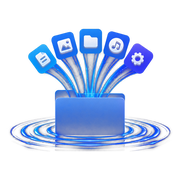
What is DeskRipple?
DeskRipple puts folder icons right on your desktop, alongside your regular icons, and each one expands into a panel of shortcuts when you point at it or click it. It runs on Windows 10 and 11.
Think of each folder as a drawer that takes up a single icon until you reach for it, then fans open, then tucks away again. It's a way to clear desktop clutter without burying anything in a Start-menu folder.
The mental model: DeskRipple holds shortcuts to your apps, files, and links. It never moves or changes the apps and files themselves — only the shortcuts that point at them.
First things to know
Three things clear up almost every "wait, what?" moment for a new user:
It lives in the system tray
There's no taskbar button and nothing in Alt+Tab. To get back to it, double-click the DeskRipple tray icon by the clock — that opens the Manager.
Open a folder by pointing or clicking
New installs open a folder when you point at it. Prefer clicking? Switch it in Settings.
Adding a shortcut moves it — safely
Dragging a desktop shortcut in clears it off your desktop, but nothing is deleted. What happens & how to undo it →
Windows 11 tip: new tray icons start hidden in the ^ overflow near the clock. Drag the DeskRipple icon down onto the taskbar so it's always one click away.
The tray right-click menu has Open Manager, Send feedback, Manage profiles… (once you have more than one profile, the list appears above it for quick switching), Open Shortcuts Folder, and Exit. And on first launch you'll accept the license agreement (I Agree) — anonymous diagnostics stay off unless you turn them on.
Quick start — your first minute
- Find the Getting Started folder icon on your desktop (near the upper-left).
- Point at it to open the panel. (New installs open on hover — you can switch to click in Settings.)
- Click any shortcut inside to launch it.
- Drag a shortcut from your desktop onto the folder to add it. Heads-up: this tidies it off your desktop — nothing is lost. Details →
- Want more folders? Double-click the tray icon to open the Manager, then choose New folder.
That's the whole loop. The Getting Started folder is a completely normal folder — rename it, fill it, or delete it; it never comes back on its own. Right-click any folder for Rename..., Expand style, Edit folder, and more.
Where did my desktop shortcut go?
The one behavior most worth understanding up front — and the good news is nothing is ever lost.
When you drag a shortcut off your desktop into a folder, DeskRipple moves it — the desktop icon goes away, but nothing is deleted. The original is kept safe in DeskRipple's Desktop Shortcuts folder so your desktop stays clean, and you can put it back anytime.
- Put it back: removing the shortcut from DeskRipple returns the original to your desktop.
- Uninstalling restores everything to the desktop automatically.
- See the archive anytime: tray menu or Settings → Open Shortcuts Folder.
Prefer to keep originals in place? In Settings, set When I add a shortcut from my desktop to Copy it (keep the original on my desktop).
This only applies to shortcuts (.lnk) and web links (.url) dragged from the desktop itself. Documents and other files are always left where they are, and dragging from an Explorer window always leaves the source file exactly where it was.
Cheat sheet
The whole interaction model at a glance — the details are in the sections below.
| You do | You get |
|---|---|
| Point at / click a folder | Panel opens (per Open folders with) |
| Single-click a shortcut | Launches it |
| Double-click a folder | Its per-folder action (None / Open all / Open Manager) |
| Drag a shortcut onto a folder | Adds it (desktop originals are kept safe — Move/Copy setting) |
| Drag a shortcut out of a panel | Puts it (back) on the desktop |
| Drag inside a panel | Reorders |
| Hold + drag a folder icon | Moves it on the desktop grid |
| Right-click a folder / shortcut | Menus (edit, icon, style, remove…) |
| Double-click the tray icon | Opens the Manager |
Opening, launching, and closing folders
How a folder opens is set by Open folders with in Settings:
- Hover (the default) — point at the folder and the panel opens after the Delay before opening.
- Click — a single click toggles the panel open and closed.
Closing has one subtlety worth knowing, controlled by Close when the mouse leaves the panel (a Click-mode option):
- On — the panel closes shortly after the cursor leaves it (after the Delay before closing).
- Off — panels stay open and other windows can cover them. Click the panel to bring it back to the front, and click the folder icon again to close it.
Only one folder open at a time (a Click-mode option, on by default) makes opening one folder close any other. In Hover mode that is always the behavior — hovering a different folder closes the one already open.
To launch something, single-click its shortcut in the panel.
Double-click a folder icon for a whole-folder action. Each folder has a Double-click action (set in the folder editor): None (the default), Open all, or Open Manager. Set it to Open all and one double-click launches every shortcut in the folder — your whole work setup in a single gesture.
Add shortcuts to a folder
Drag something onto the closed folder icon, or into the open panel — the panel previews where the new item will land as you hover. (Remember: dragging a shortcut off the desktop moves the original into safekeeping by default.)
What you can drag in: desktop shortcuts (.lnk), web links (.url), documents, files, and apps from the desktop or an Explorer window, and Microsoft Store apps.
Shortcuts get copied; everything else gets linked. A .lnk or .url is copied into DeskRipple, so the entry keeps working even if the original moves or goes away. A document, file, or folder is linked where it already lives — DeskRipple leaves it on your desktop, so the safekeeping behavior above doesn't apply to it, and deleting or moving that file means the entry can no longer open it. To get a document off your desktop, move it into your Documents folder first, then drag it in from that Explorer window.
Dragging an app straight from the Start menu doesn't work — Windows doesn't create a normal shortcut when you drag from the Start menu. The fix: drag the app to your desktop first (that makes a normal shortcut), then drag that shortcut into the folder.
Prefer not to drag? Open the Manager, pick the folder, and use Add shortcut to choose a file.
Organize shortcuts
- Reorder inside a folder: drag a shortcut to a new slot. A live preview shows the layout before you drop.
- Drag out onto the desktop: the shortcut leaves the folder and lands on the desktop. If it had an archived original, that original comes back (web links return as real
.urlfiles, not broken copies). - Remove: right-click → Remove from folder, or the ✕ next to it in the Manager. Any archived original returns to your desktop.
The shortcut right-click menu: Open file location · Rename... · Set as folder icon (the folder takes this shortcut's icon) · Remove from folder · Properties.
Rename... retitles the shortcut inside DeskRipple only — the original file, wherever it lives, keeps its own name.
Your folders on the desktop
- Move a folder: drag the icon (with the default Hold before dragging set to Instant, it drags right away; raise that setting if you'd rather hold briefly first). It snaps to the desktop icon grid and works across monitors.
- Move desktop icons out of the way: with this setting on (the default), dropping a DeskRipple folder on a spot that's already taken nudges the native desktop icon to the nearest free cell.
- Icon size is automatic. DeskRipple matches your desktop icon size — including live Ctrl+scroll resizes and display-scaling changes — so there's deliberately no size slider.
The folder right-click menu: Expand style · Rename... · Delete folder, then Edit folder · DeskRipple Manager below the divider (those last two open the Manager window).
To change a folder's icon, right-click it → Edit folder → Change icon..., which accepts .ico, .lnk, and .exe — point it at any app to borrow that app's icon. Quicker still: right-click a shortcut inside the open folder → Set as folder icon and the folder takes that shortcut's icon. Deleting a folder returns any archived desktop originals to your desktop.
The Manager
The Manager is DeskRipple's control panel — the one window where you create folders, edit them, and change settings. Open it by double-clicking the tray icon, from the tray menu's Open Manager, by right-clicking a folder → DeskRipple Manager or Edit folder, or just by launching DeskRipple again while it's already running.
Inside you'll find:
- New folder — creates a folder and drops it on a free desktop cell near the top-left.
- The folder editor — a folder's Name, icon, Expand style, Double-click action, and its Shortcuts list (add or ✕ to remove).
- Settings and Profiles pages (below).
- The footer shows the version and a Send feedback link.
Expand styles
Each folder opens in the style you choose for it — from the folder editor's dropdown, or by right-clicking the folder → Expand style:
- Grid — icons fly out into a tidy grid (the default).
- Column — a vertical strip that wraps into more columns.
- Row — a horizontal strip that wraps into more rows.
- Fan — an arc around the folder.
- Ring — a full circle around the folder.
Try it live
The browser demo lets you feel all five styles without installing anything.
Big folders scroll. For the Grid style you can also cap how far it spreads — see Max columns and Max rows in Settings.
Settings reference
Open Settings from the Manager (or right-click a folder → DeskRipple Manager). Most settings belong to the current profile and switch with it; a couple apply to the whole install and are marked All profiles (that label only appears once you have more than one profile).
- Open folders with — Hover or Click. Hover reveals Delay before opening; Click reveals Close when the mouse leaves the panel and Only one folder open at a time.
- Panel background — slide from Clear (see-through) to Solid.
Timing & animation
- Delay before closing — how long a panel waits after the cursor leaves before it closes.
- Hold before dragging — how long to hold the mouse button before a folder or shortcut starts to drag (default Instant). Clicks still work either way.
- Animation speed — how fast panels open and close.
Grid style layout
- Max columns / Max rows — caps on the grid, for folders using the Grid expand style; the panel scrolls to show items beyond the limits.
Desktop behavior
- Highlight folder icons on hover — a subtle highlight behind a folder icon, like native desktop icons (on by default).
- Move desktop icons out of the way — native icons hop aside when a folder lands on their cell.
- Restore expanded folders after restart — folders that were open when DeskRipple closed re-open next start.
- When I add a shortcut from my desktop — Move or Copy, plus an Open Shortcuts Folder button. See Where did my desktop shortcut go?
- Start DeskRipple when you sign in to Windows All profiles — on by default.
Privacy & diagnostics All profiles
- Send anonymous usage diagnostics — off by default. See Privacy & your data.
Profiles
A profile is a named desktop setup — say Work, Home, or Streaming. Exactly one is active at a time, and switching swaps every folder in place, instantly, with no restart.
- Manage them in the Manager → Profiles: create, clone, rename, and delete (up to 10). The active profile and the last remaining one can't be deleted.
- Switch quickly from the tray menu — your profiles are listed there, with a ✓ on the active one.
- Clone copies a profile's folders and settings, but not its archived desktop originals.
- Power users: launch DeskRipple with
--profile <name>to switch from a desktop shortcut or script.
Privacy & your data
Everything stays on your machine. If you opt in (it's off by default), DeskRipple sends one anonymous daily summary — no names, files, or personal data, just aggregate counts. The full field list lives in the privacy policy.
- The app also checks for updates automatically (see Updates & versions). There are no accounts, no ads, and nothing is sold.
- Where your data lives:
%APPDATA%\DeskRipple— including each profile's Desktop Shortcuts folder that holds your archived desktop originals. - Moving to a new PC: install DeskRipple, then copy your
%APPDATA%\DeskRipplefolder over — it re-links your folders and settings on the next launch, and your license key is stored in that folder, so it moves with you. Give your folders a quick check afterward.
Updates & versions
- Updates download in the background and install when the app is idle (nothing you're doing gets interrupted).
- Turn automatic updates off in the About dialog → Install updates automatically.
- Find your version in the Manager footer or the About dialog. After an update, a small tray balloon confirms the new version.
Your license
- DeskRipple is a one-time purchase, not a subscription. DeskRipple runs for 14 days after you install it, then needs a license key to keep working — enter your key once, under Manager → About or on the license screen, and there's no expiry.
- Your key arrives with your receipt. The checkout confirmation and the receipt email both link a key page that shows your key from the order number and the email address used at checkout. Lost it later? The same page keeps working, and support@deskripple.com can look an order up.
- Refunds and the update promise (at least two years from purchase) are on the terms of sale & refunds page.
- Tested the beta? Beta testers get 50% off — the founder code is on the app's license screen and in the founder email.
- Feedback still shapes DeskRipple. Every Send feedback button prefills your version, OS, and display scale, so a useful report takes zero effort.
Troubleshooting
My desktop shortcut disappeared after I dragged it in
That's the default Move behavior — the original is safe in the Desktop Shortcuts folder and comes right back when you remove the shortcut. Full details: Where did my desktop shortcut go?
A folder won't open when I point at it
Check Open folders with and the Delay before opening in Settings, try clicking it, or restart DeskRipple from the tray (right-click → Exit, then relaunch).
Panels or icons look wrong after changing display scale or desktop icon size
DeskRipple re-adjusts itself within a couple of seconds. If it sticks, restart the app.
The folder icons vanished
Usually an Explorer crash or restart — it recovers on its own. If not, tray → Exit and relaunch. If the tray icon is gone too, relaunch DeskRipple from the Start menu.
I can't find the tray icon
On Windows 11 it's likely in the ^ overflow near the clock — drag it onto the taskbar to keep it visible.
A shortcut has a blank or wrong icon
The icon comes from the target. If the target moved, remove and re-add the shortcut — or, for a folder's own icon, right-click the folder → Edit folder → Change icon...
It crashed, or I found a bug
Open the About dialog and use Open logs folder and Send last crash report, then Send feedback — the form prefills your version, OS, and display scale.
If you can, also attach deskripple.log from the logs folder to the form — it records what the app was doing at the time, which matters most for visual problems (flicker, wrong sizes, icons out of place) that a screenshot can't capture. The log can include your folder and shortcut names.
Still stuck? The feedback form is the best way to send a useful bug report. You can also email support@deskripple.com.
FAQ
Is it free? Is it a subscription?
DeskRipple is a one-time purchase, not a subscription — the price is shown at checkout, and every purchase can be refunded within 14 days. The browser demo is free, and there's no account. (See Your license.)
Does it work on Windows 10?
Yes — Windows 10 (22H2) and Windows 11, 64-bit. There's no 32-bit or ARM64 build.
Multiple monitors and mixed DPI?
Yes. DeskRipple is per-monitor DPI aware and is designed to place docks correctly across displays running at different scales.
Does it start with Windows?
Yes, by default — the Start DeskRipple when you sign in to Windows setting is on. Turn it off in Settings anytime.
Why can't I drag apps straight from the Start menu?
Windows doesn't hand a real file to another app during a Start-menu drag. Drag the app to your desktop first, then drag that shortcut into a folder. (See Add shortcuts to a folder.)
Does DeskRipple touch my actual files?
No. It holds shortcuts that point at your apps and files. Desktop originals you drag in are archived and always restorable.
How do I uninstall completely?
From Windows Settings → Apps → Installed apps, like any program. DeskRipple puts any archived desktop shortcuts back on your desktop and removes its data folder.
How do I move my setup to a new PC?
Install DeskRipple on the new PC, then copy your %APPDATA%\DeskRipple folder across — DeskRipple re-links everything on the next launch, and the license key stored in that folder moves with it. Double-check your folders afterward. (See Privacy & your data.)